

Introduction
Voice control lets you use your phone just by speaking. You can open apps, scroll, write messages, or move between screens without touching the display. It is not only a helpful tool, but for some people it is an essential way to use technology.
This feature is becoming more and more important. It makes smartphones easier to use for people with limited hand movement, older adults, and anyone who wants to use the phone hands-free. It is also very practical when driving, cooking, or doing something else where your hands are busy.
Both major systems already have built-in tools for this:
- On Android, the feature is called Voice Access.
- On iOS, it is called Voice Control.
When you turn on voice control for the first time, you may not see any labels or numbers on the screen. To make them appear, say “Show labels” on Android or “Show names” on iOS. After that, the phone shows you what you can select, and you can start using your voice to control everything easily.
Voice Access on Android
Voice Access is a free app from Google that lets you control your phone with your voice. You can find it in the Accessibility settings and turn it on in just a few steps. When Voice Access is active, you can say “Show numbers” or “Show labels.” The command “Show numbers” displays small numbers next to buttons, links, and other elements on the screen. You can then say the number to tap it without touching the display.
In the official Voice Access guide, there is also a command called “Show labels.” In theory, it should show the names of elements instead of numbers. However, in practice, labels are rare and not widely supported on Android. Most of the time, you will see only numbers. This is different from iOS, where labels with real names are common and easier to read.
Voice Access allows you to open apps, scroll through pages, write or edit text, and move between screens. For example, you can say “Open YouTube,” “Scroll down,” or “Tap 5.” It feels natural and simple, especially after a few minutes of practice.
I tested the feature on a Samsung Galaxy S24 Ultra with Android 16 and One UI 8. The experience was smooth and fast. Voice Access responded quickly, and I was able to move around the system and apps using only my voice. Below is a short video showing how to turn pages using Voice Access in the Books app.
To see the available voice commands, I recommend visiting the Voice Access Settings. There you can explore a full list of actions you can control with your voice and even practice some of them. Below are some examples of available commands on Android.


It is also a good idea to add Voice Access to the Accessibility shortcut. This lets you turn the feature on or off quickly by pressing the button on the navigation bar. It makes daily use much easier. Below you can find an introduction video showing how to use Voice Access from Google on YouTube:
Voice Control on iOS
Voice Control is built into iPhones and iPads, so you do not need to install anything. You can find it in Settings → Accessibility → Voice Control. After turning it on, you can start using your voice to open apps, scroll, type text, or move around the screen.
When you first activate Voice Control, you may not see any names or numbers on the screen. To make them appear, say “Show names.” The phone will display the names of buttons and links, which makes it easier to understand what you can say next.
When you first activate Voice Control, you may not see any names or numbers on the screen. To make them appear, say “Show names.” The phone will display the names of buttons and links, which makes it easier to understand what you can say next.
Here are a few examples of how you can use Voice Control on an iPhone:
- Say “Open Safari” to launch the browser.
- Say “Scroll down” or “Scroll up” to move through a web page.
- Say “Tap Messages” to open your messages.
- Say “Play music” to start your favorite playlist.
- Say “Go home” to return to the main screen.
These simple commands show how easy it is to control an iPhone using only your voice. After a short time, it feels natural and quick to use.
I also tested this feature in the Calculator app, where I was able to perform addition using only my voice. Each button was clearly recognized, so I could say the numbers and operations without touching the screen.


When multiple elements share the same label, for example, several “Get” buttons in the App Store, saying “Tap Get” makes the system assign numbers to each button. You can then say the number to choose the correct one. This helps avoid confusion and makes navigation clear even on busy screens.


One more useful tip: add Voice Control to your Accessibility Shortcuts. When you do this, you can turn it on or off easily by pressing the side button three times. It saves time and makes the feature more practical for daily use.
Here is how it looks for me. After pressing the side button three times, I can easily choose which accessibility tool I want to use. From the menu, I can quickly turn on Voice Control, Magnifier, or other accessibility options without going into Settings.
This makes it much faster to start or switch between the tools I use most often, and it keeps everything accessible with just one simple gesture.


Voice control on computers
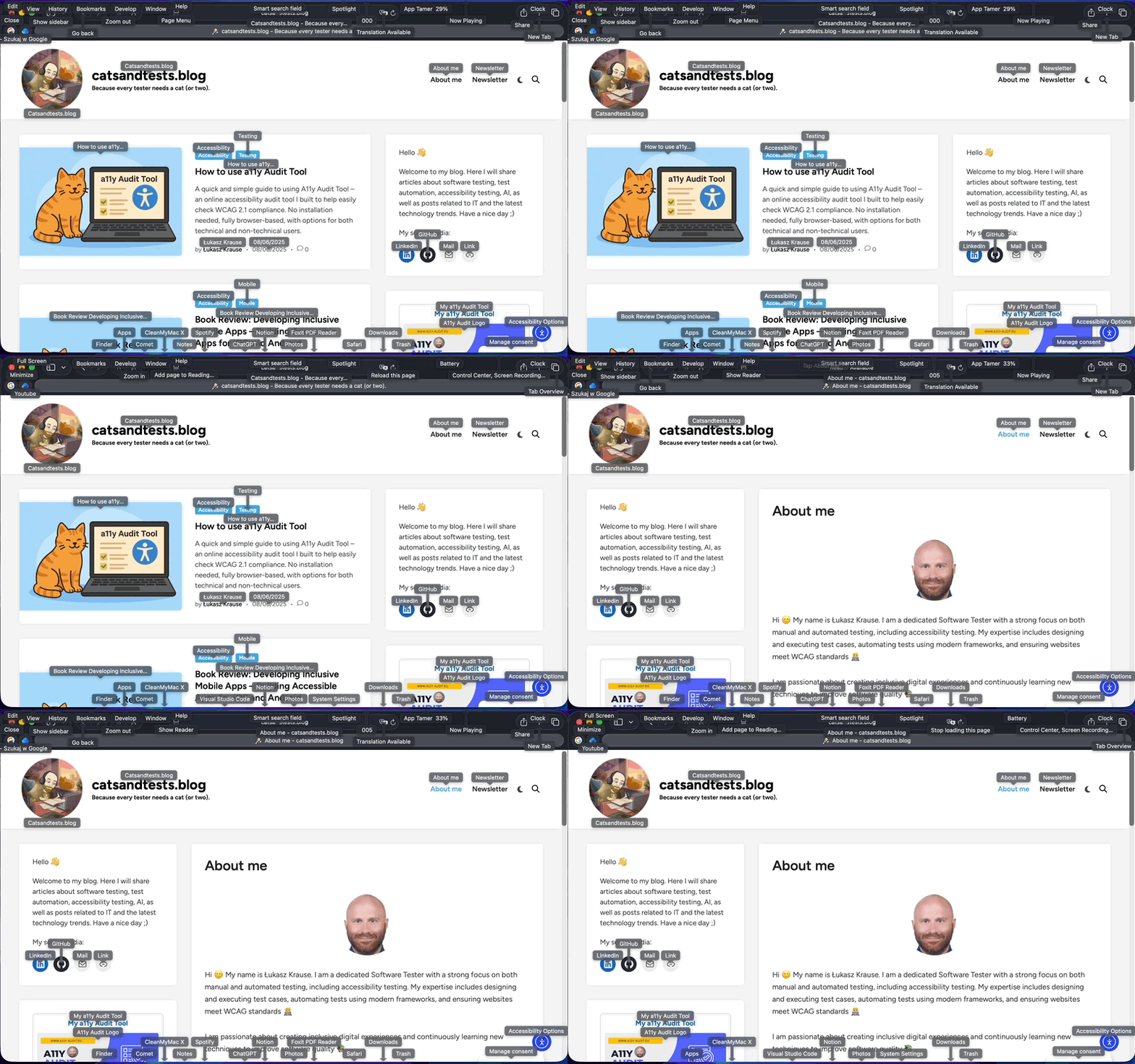
Voice control is not limited to phones or tablets. It also works well on computers. I tested it on my MacBook with macOS, and the setup was very simple. After turning on Voice Control in System Settings → Accessibility, I could use voice commands to move around apps and web pages.
For example, when browsing a website, I said “Click About me” and the system opened the next page right away. It felt smooth and accurate. You can also scroll, open links, write text, or switch between apps, all by speaking.
On Windows, there is also built-in voice control called Voice Access (available in Windows 11). It works in a similar way, letting you open apps, dictate text, or navigate websites using simple commands like “Open Edge,” “Scroll down,” or “Click OK.”
This shows that voice control is now part of every major platform, Android, iOS, macOS, and Windows. This making technology more inclusive and easier to use for everyone.
Why voice control matters for accessibility
Voice control is not only about comfort or new technology. For many people, it is a real way to use their phone independently. If you cannot move your hands easily or if touching the screen is difficult, your voice becomes your main tool.
It helps people with limited mobility, older adults, or anyone recovering from an injury. Even a simple task like sending a message or opening an app can become possible again with a voice command.
It is also useful for everyday situations. You can use your phone while cooking, cleaning, or driving, without needing to touch the screen. It saves time and keeps you safe when your hands are busy.
From an accessibility point of view, voice control gives freedom and inclusion. It allows everyone to use modern devices and digital services in their own way. It removes barriers and makes technology friendlier for all.
Both Voice Access and Voice Control show that accessibility is not only about helping people with disabilities, it is about creating technology that works for everyone.
Summary
Voice control is one of those features that you do not realize you need until you try it. It can make everyday tasks faster, simpler, and more comfortable, not only for people who need accessibility support, but for everyone.
In daily life, voice control can save time in many situations. You can open apps, send messages, or check the weather while cooking or driving. You can read books hands-free, scroll through a website, without touching the screen. It is perfect when your hands are busy or when you just want to keep things simple.
From an accessibility point of view, voice control can make a huge difference. For people with limited mobility or hand movement, it gives the freedom to use a phone, tablet, or computer independently. It helps older adults who find gestures or small buttons difficult. It can also support people recovering from an injury or anyone who benefits from less physical interaction with a device.
Voice Access on Android and Voice Control on iOS both show how technology can adapt to human needs, not the other way around. They make smartphones and computers more inclusive and show that accessibility features are not only for a few, they are tools that can make life easier for everyone.
